Stock Syncing Issues
Follow the steps below to resolve possible issues affecting the stock sync with eWarehousing.
eWarehousing App Shop Settings
In your Shopify admin store navigate to the Apps folder on the left and select the eWarehousing app.
Make sure that the following settings are set as follows:
Enabled: YesInventory Management: Enabled (checked)Stock Type: Salable, or Physical depending on your eWarehousing stock levelsAPI credentials: Make sure they are valid and filled in correctly
Product Settings
It is important that the correct settings are set on each product and that it also tracks the right location. Navigate to the settings of the product that is not syncing the stock with eWarehousing and scroll down to the Inventory section.
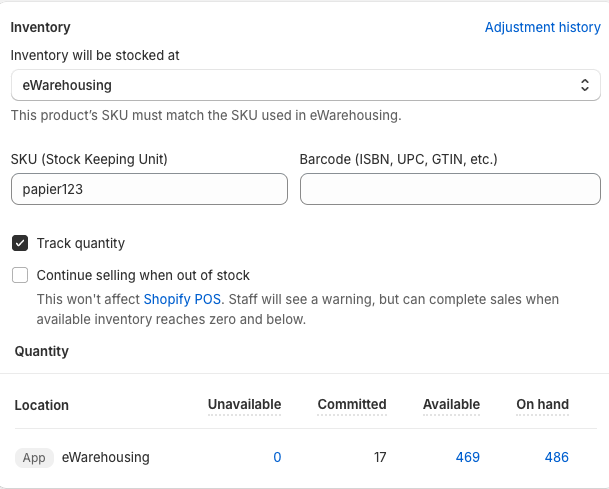
For all or some products that are not syncing stock check the following settings:
Location: SelecteWarehousingas location for stockSKU: Should be exactly the same as in eWarehousingTrack Quantity: Make sure this setting is checked
Note: SKU in Shopify should resemble the Article Code in eWarehousing!
We can see in the image below that the Article Code resembles the SKU setting on the Shopify product page.

The image above also shows you the Salable and Physical stock of your products. Depending on your shop settings from the shop settings section it will update your stock.
Shopify Stock Syncs
Shopify also doesn't continually sync stock. It only syncs stock with eWarehousing on certain occasions, these are explained below:
When the
Locationof a product is changedWhen the
SKUof a product is changedScheduled sync, Shopify syncs stock once every hour
To trigger a stock sync for your product manually you can change one of these settings and the stock should be reflected, with a short delay.
Example
In this example your physical stock is 0, but your salable stock is 10
Your stock is not syncing but all settings are correct. However, in your shop settings you've set your Stock Type to Physiscal. This means that your stock is in fact syncing but with the wrong type. If you change the Stock Type to Salable it will correctly reflect your stock. Keep in mind that to trigger a sync, you need to change the location or SKU back and forth.