Connecting with MyShop
Prerequisites
Before installing the eWarehousing application, ensure that you have the following:
Administrator access to your MyShop store.
Your MyShop Shop ID
Your ProductList IDs
Your MyShop shop name
Step 1. Activate the eWarehousing application
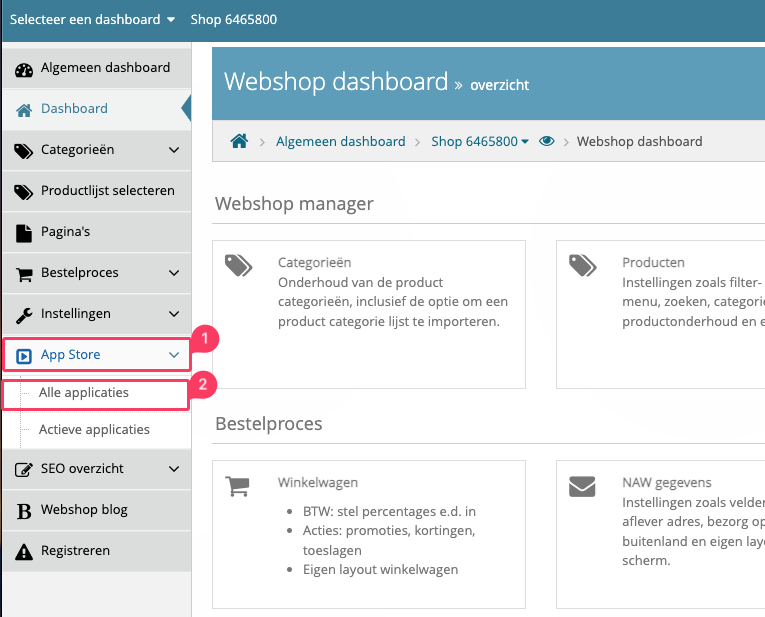
To activate the application, navigate in the MyShop Admin to applications.
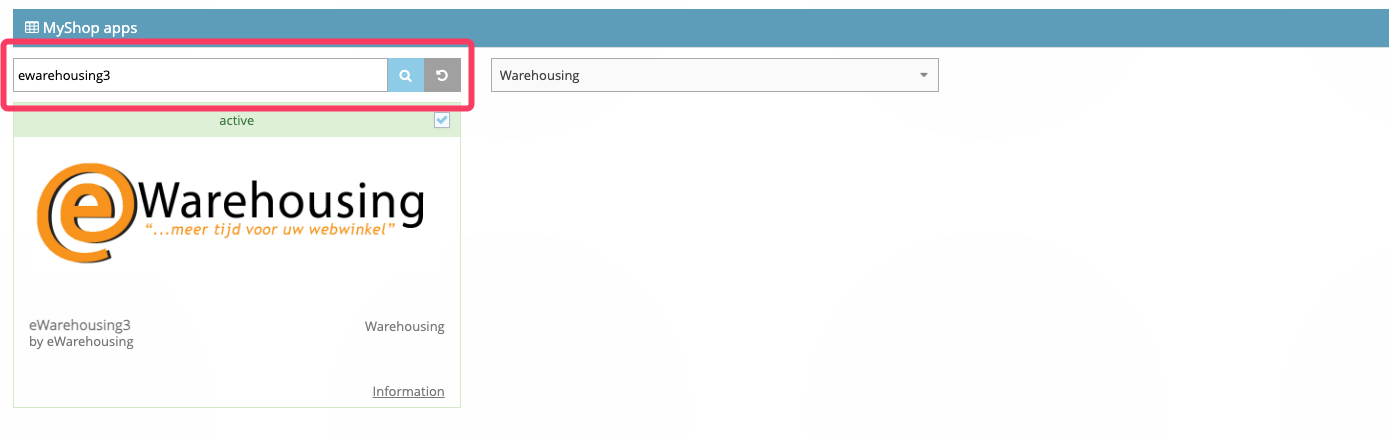
Next search for the eWarehousing3 Application.
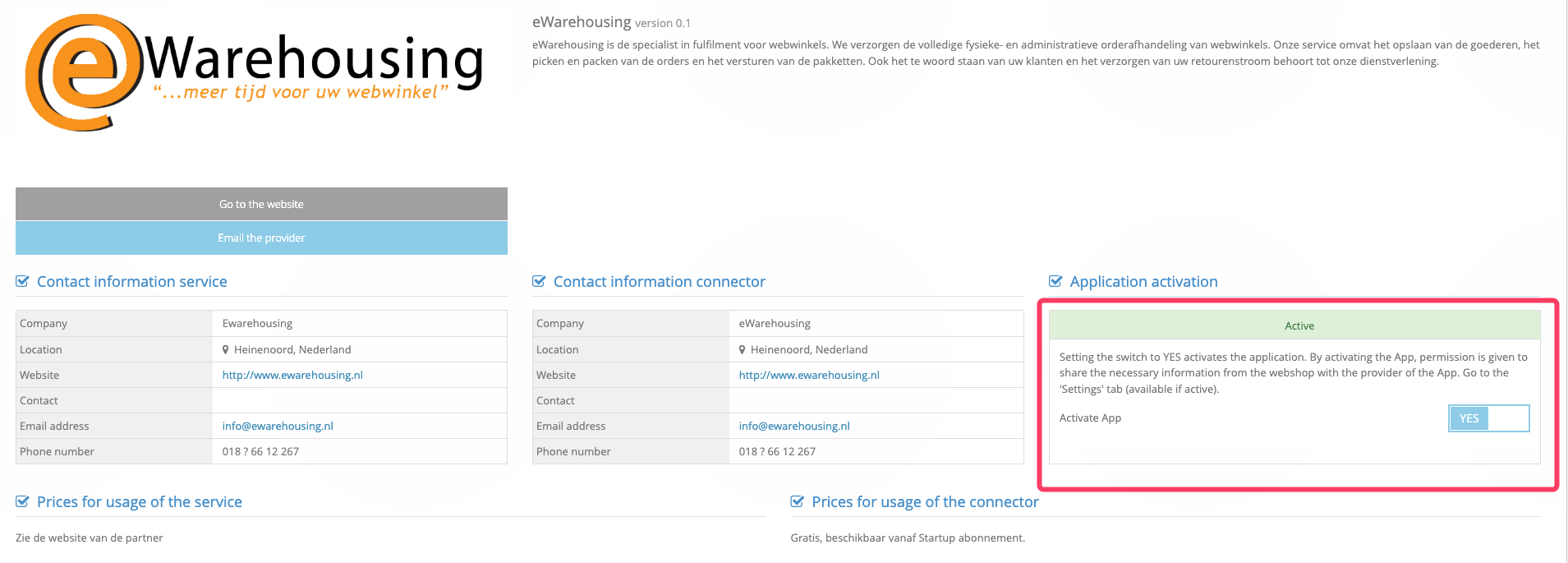
Then activate the app by switching the switch to YES.
Step 2. Find your shop ID and ProductList IDs
After activating the app, you will need to find your Shop ID and ProductList IDs. These can be found in the following sections.
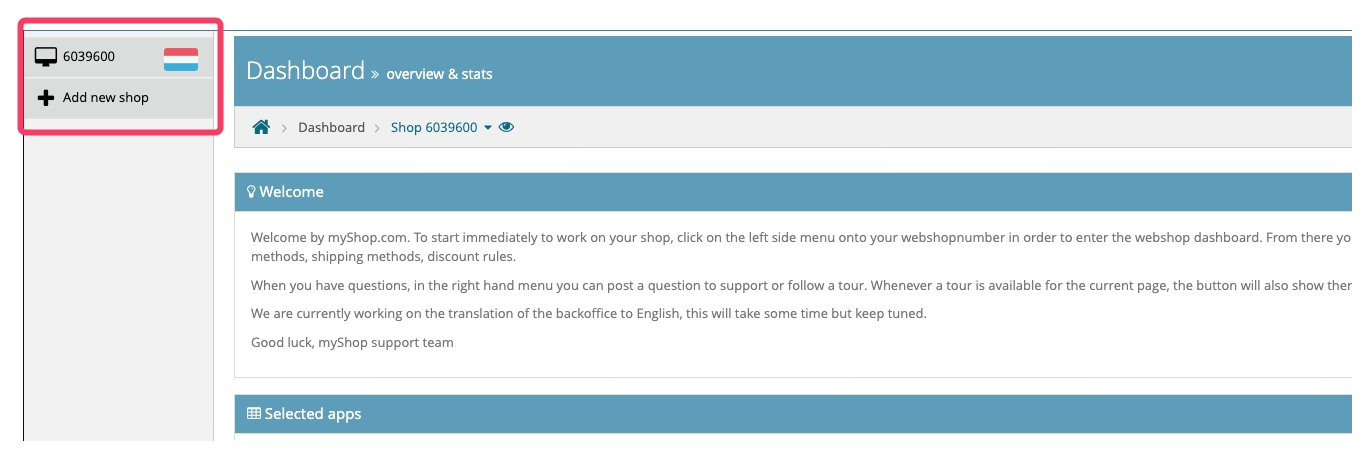
Navigate back to the dashboard. The Shop ID can be seen in the menu on the left.
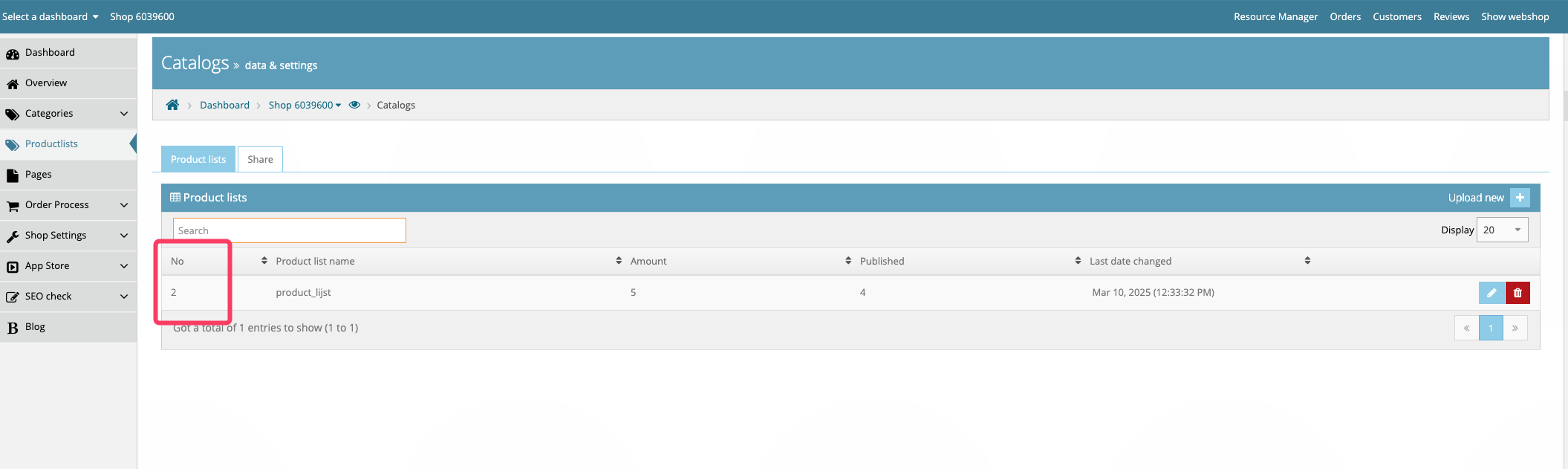
The product list IDs are needed to be able to connect your products to eWarehousing. This will allow eWarehousing to know which products are available in your shop and let the application handle the stock for these products.
To find your product list IDs, navigate to your shop and click on the Product Lists tab. Here you will find a list of all your product lists and their corresponding IDs.
Step 3. Enable Stock Management
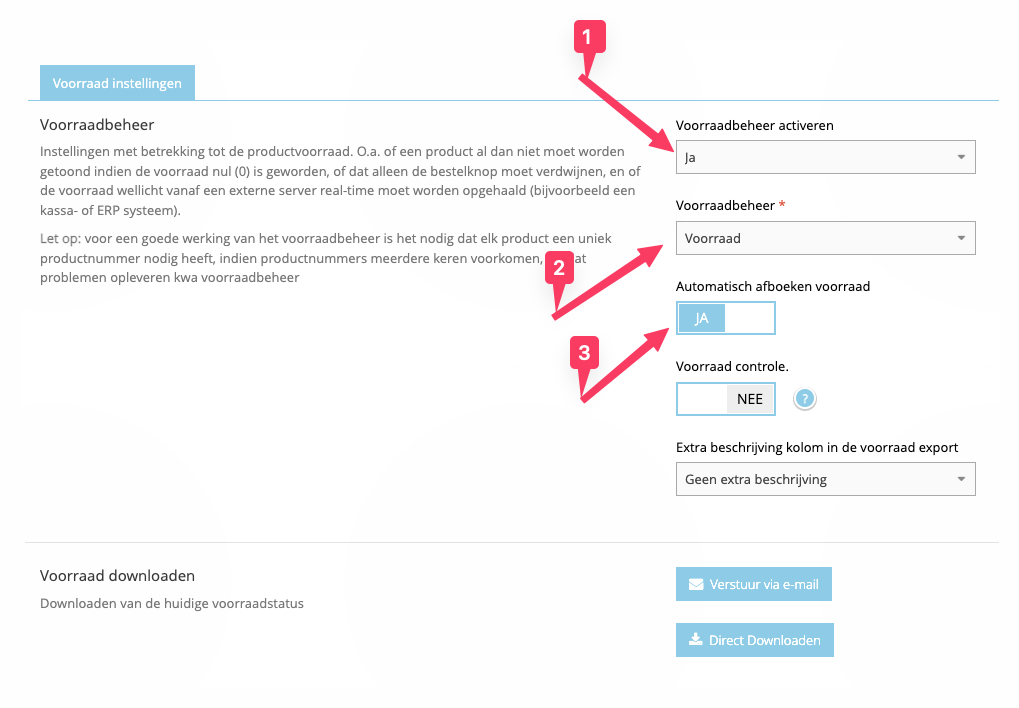
To enable stock management, navigate to the Productlist tab in the MyShop Admin. Then open the Stock tab and select Stock Settings.
Note: if not enabled as shown in the image we will not be able to update the stock in your MyShop store.
Step 4. Contact eWarehousing to finalize the connection
After finding your Shop ID and ProductList IDs, contact eWarehousing to finalize the connection. Provide them with the following information and they will take care of the rest:
Your Shop ID
Your ProductList IDs
Your MyShop shop name