Connecting with Lightspeed
The application is not directly available in the Lightspeed app store. To install the application in your Lightspeed store you will need to follow these steps.
Step 1. Login to the backoffice of your Lightspeed store.
The url to the backoffice is usually (https://<WEBSHOP>.webshopapp.com/admin/auth/login).
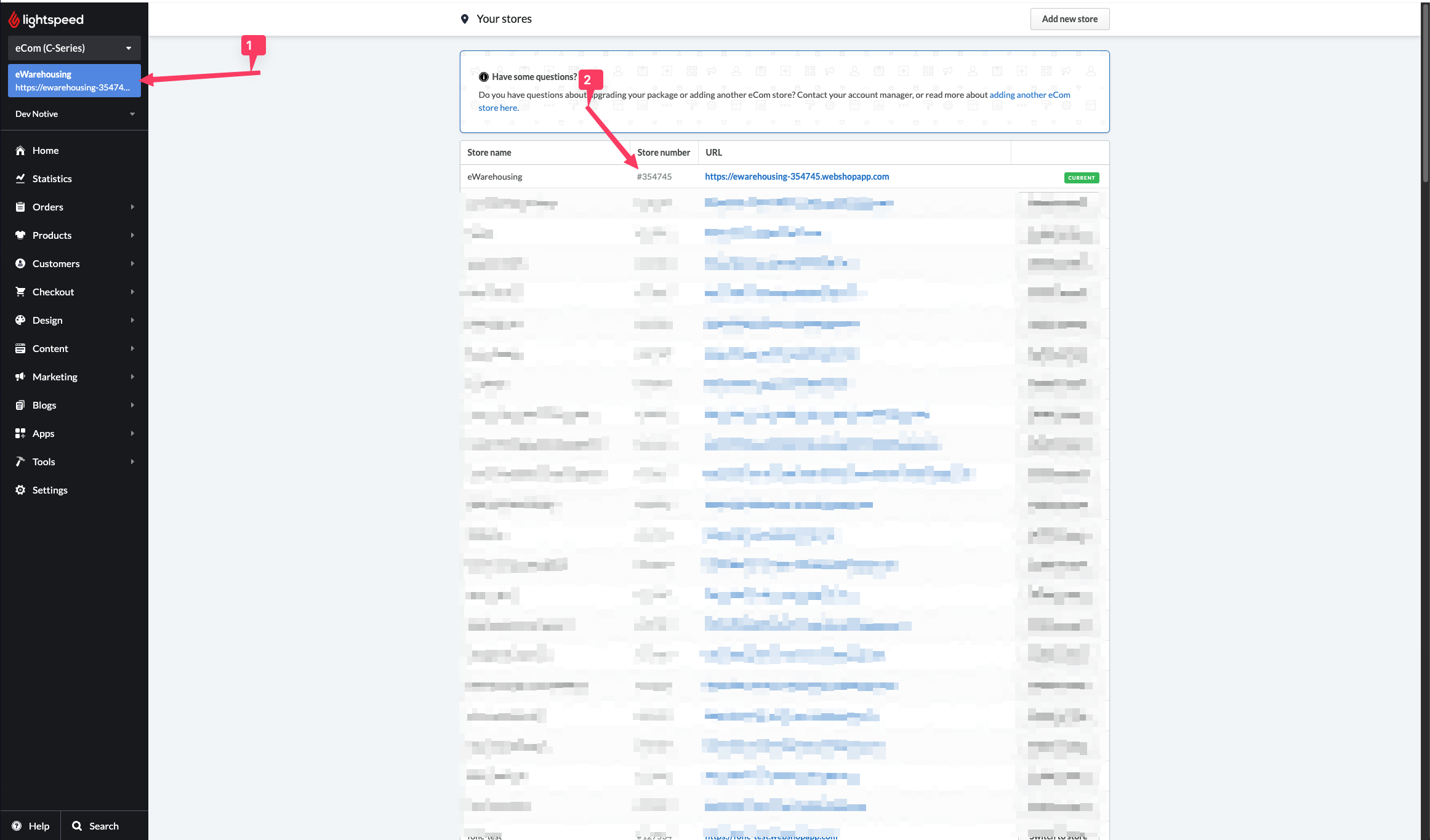
Step 2. Get your store ID
In the image below you can see what the store ID looks like. This ID is needed to connect your store to eWarehousing.
The store ID is the number without the # in front of it.
Step 3. Install the eWarehousing application
To install the eWarehousing application you will need to visit the following URL:
https://api.webshopapp.com/nl/apps/install?api_key=6c6ed32a2571539543630d12071c620f&shop_id=<STORE_ID>
Replace <STORE_ID> with the store ID you found in step 2.
After visiting the URL follow the steps to install the application. If succesful you will be redirected back to the Lightspeed backoffice.
Step 4. Contact eWarehousing to finalize the connection
After installing the application, contact eWarehousing to finalize the connection. Provide them with the following information and they will take care of the rest:
Your Store ID
Your Lightspeed shop name
Your Lightspeed article field (if not given leave empty, default is
ARTICLE_CODE)This is the field in Lightspeed variants that we will use as
article_codetowards WMS.
Which custom order statuses should be enabled (if applicable)
This is only needed if you want to use custom order statuses in Lightspeed. If you do not want to use custom order statuses, leave this empty.
When an order gets this status in Lightspeed, it will be synced to the WMS.