Connecting with CCVshop
Prerequisites
Before installing the eWarehousing connection module, ensure that you have the following:
Administrator access to your CCVshop store.
Basic knowledge of CCVshop module installation and configuration.
eWarehousing credentials.
Step 1. Install the eWarehousing App in CCVshop
To install the module, follow these steps:
Log in to your CCVshop admin panel.
Navigate to the App Store section.
Search for the eWarehousing module.
Click the Install button to install the module and follow the steps.
Step 2. Configure your credentials
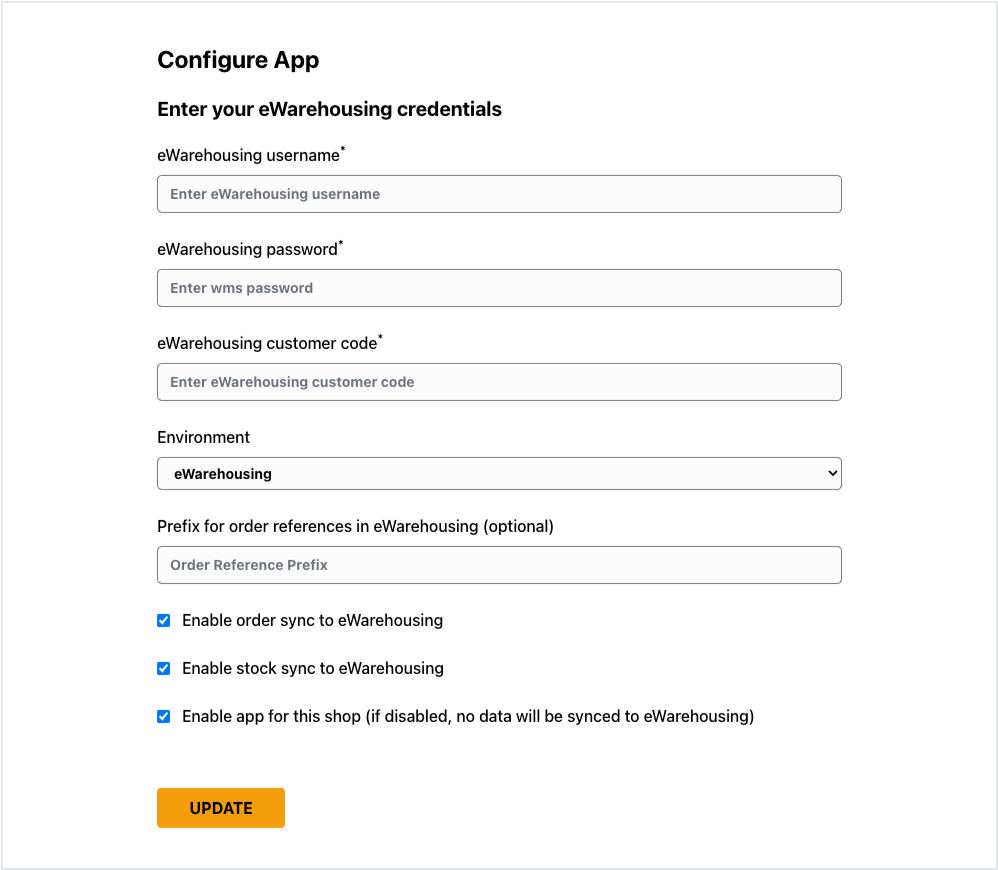
After installing the module, you need to configure it. There are several fields within the admin panel of your eWarehousing connection module that need to be filled in. These are the following fields:
Field | Description |
|---|---|
eWarehousing username | Your eWarehousing API username |
eWarehousing password | Your eWarehousing API password |
eWarehousing customer code | Your eWarehousing API customer code |
Environment | The used environment. eWarehousing is the live WMS |
Prefix for order references | This is an optional setting to prefix your orders with a reference in the WMS |
Enable order sync setting | This setting enables the automatic sync of orders to the wms |
Enable stock sync setting | This setting enables the automatic sync of stock to the wms |
Enable the app | This setting enables your app |
The eWarehousing configuration screen:
Step 3. Test your credentials
After pressing the update button your settings will be saved and the app will test if your credentials are valid.
If all credentials are filled in correctly you will see the following message:
